User Groups
User groups allow you to organize users into teams and manage zone access collectively. Instead of assigning zones to individual users one at a time, you can assign zones to a group and all members automatically get access.
Groups are available starting from Poweradmin v4.2.0.
Key Concepts
- Groups are collections of users that share access to a set of zones
- A user can belong to multiple groups simultaneously
- A zone can be owned by a user, one or more groups, or both
- Each group has an access template that defines what its members can do with the group's zones
- Permissions from all sources (user template + group memberships) are combined - if any source grants access, the user has it
Group List
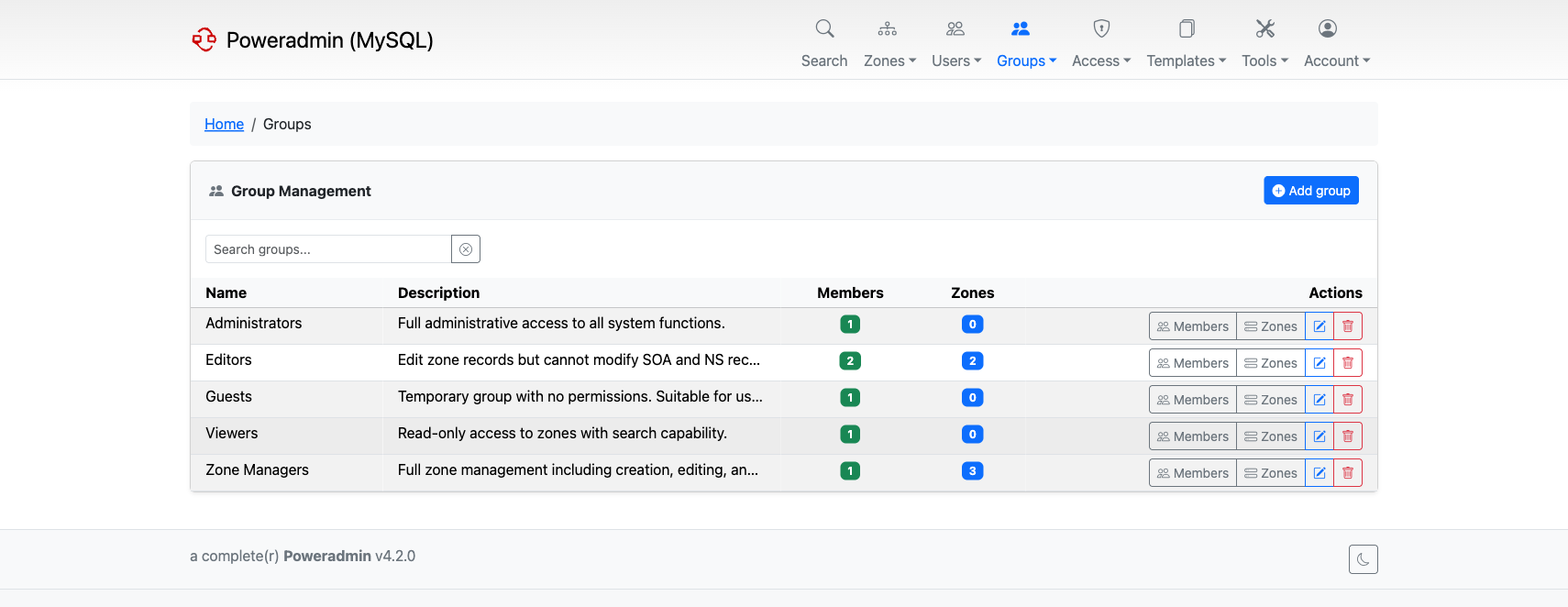
The group list shows all groups with their description, member count, and assigned zone count. From here you can create new groups, manage members and zones, edit, or delete groups.
Navigate to Groups in the top navigation bar to access the group list.
Creating a Group
- Click Add group from the group list
- Enter a Group Name (must be unique)
- Optionally add a Description
- Select an Access template - this determines what permissions group members have for zones owned by this group
- Click Create Group
After creation, you can add members and assign zones.
Editing a Group
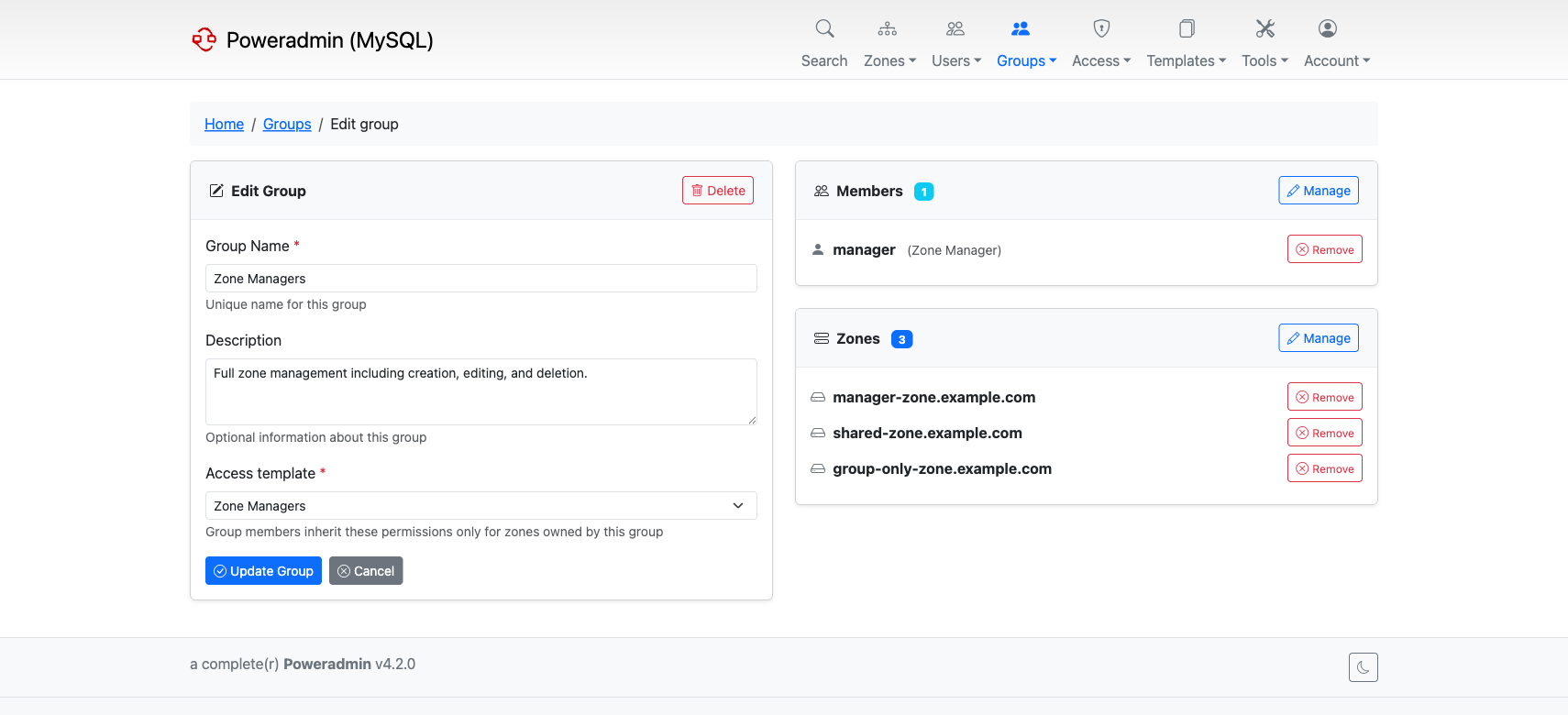
The edit page shows the group details on the left, with members and zones on the right. You can update the group name, description, and access template. Members and zones can be quickly removed from here, or managed in bulk through dedicated screens.
Managing Members
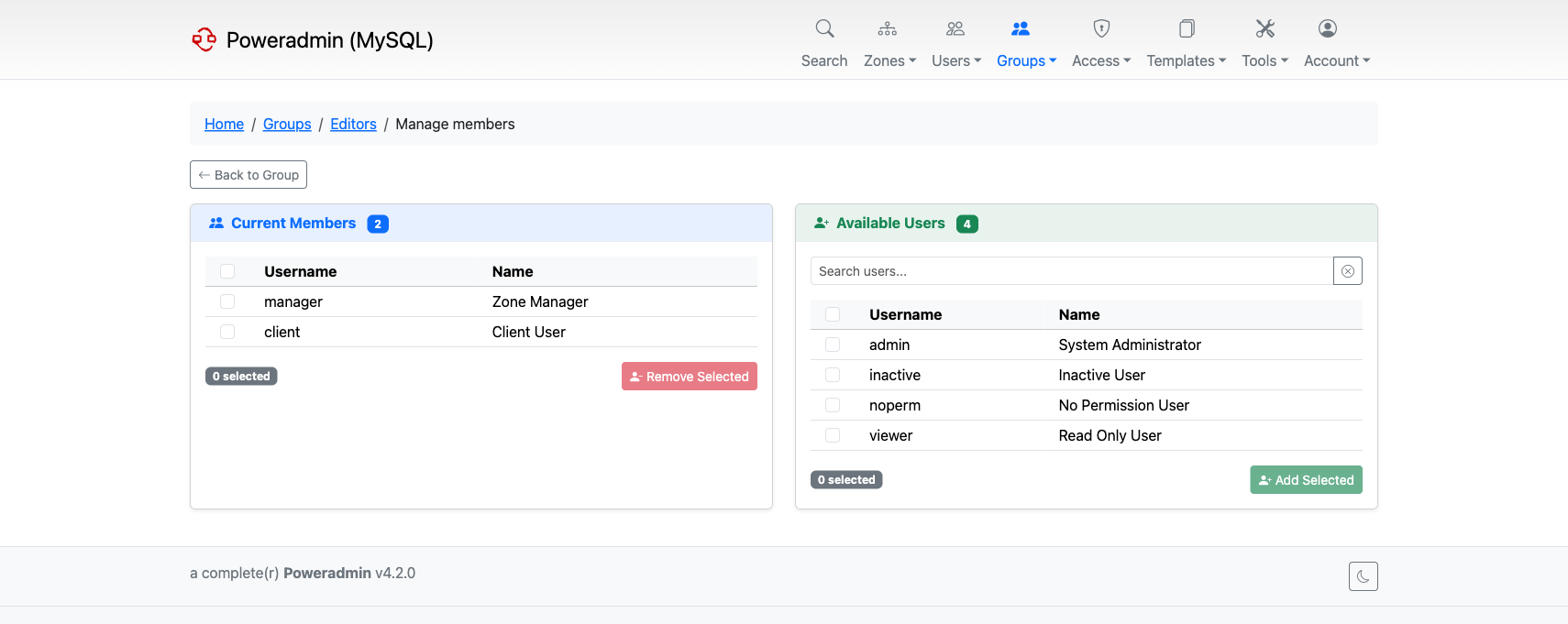
The member management screen has two panels:
- Current Members (left) - users already in the group
- Available Users (right) - users that can be added
Select users with checkboxes and click Add Selected or Remove Selected. Changes take effect immediately.
Managing Zones
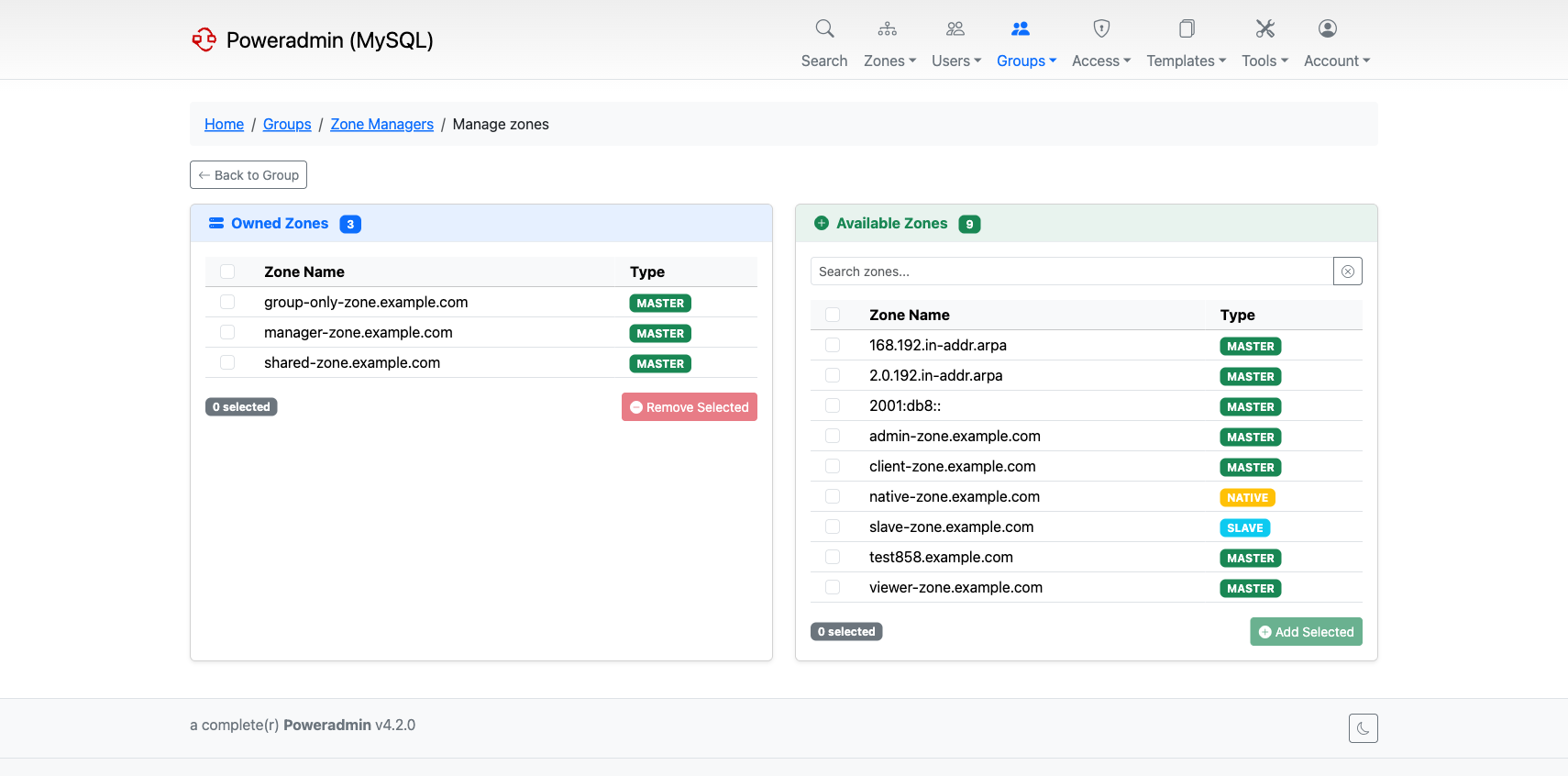
Zone management works the same way as members:
- Owned Zones (left) - zones currently assigned to the group
- Available Zones (right) - zones that can be assigned
All group members get access to owned zones based on the group's access template.
How Permissions Work
Poweradmin combines permissions from all sources. A user's effective permissions are the union of:
- Their personal access template (applies globally)
- Permissions from each group they belong to (apply only to that group's zones)
For example, if a user has a "Viewer" personal template but belongs to an "Editors" group that owns example.com, that user can edit records in example.com while having read-only access to everything else.
Note: Group access templates only apply to zones owned by that group. They do not grant permissions for zones the user owns personally or through other groups.
Access Templates
Access templates come in two types:
- User templates - assigned directly to users, apply globally
- Group templates - assigned to groups, apply only to group-owned zones
You can manage access templates under Access in the navigation bar. See Permissions for details on available permissions.
SSO Group Mapping
If you use OIDC or SAML authentication, you can automatically assign users to groups based on their SSO claims. See the OIDC or SAML configuration pages for setup details.
MFA Enforcement
Groups support MFA enforcement. When enabled on a group, all members will be required to set up two-factor authentication on their next login. This is configured through the group's settings.
Deleting a Group
Deleting a group removes the group and all its membership and zone associations. It does not delete the users or zones themselves. Click the delete button from the group list or the edit page.
Warning: This action cannot be undone. Make sure the group is no longer needed before deleting.