PowerDNS API Configuration
Overview
Poweradmin can interact with PowerDNS through its REST API in two ways:
-
Supplementary mode (default): The API enhances a traditional SQL-based setup with DNSSEC management, zone transfers, and metadata access. Poweradmin still queries the PowerDNS database directly for zone and record operations.
-
API backend mode (v4.3.0+): The API is the sole communication channel with PowerDNS. Poweradmin does not need access to the PowerDNS database at all. This is ideal for cloud-hosted PowerDNS, network-restricted environments, or API-first architectures.
This document explains how to configure both modes.
In both modes one Poweradmin installation manages one PowerDNS server, the one
named by pdns_api.server_name. Managing several servers from a single
installation is an open request, tracked in
#660.
Prerequisites
- PowerDNS server with API enabled
- API key generated on PowerDNS server
- Network connectivity between Poweradmin and PowerDNS API endpoint
Configuration Options
PowerDNS API settings are configured in the config/settings.php file under the pdns_api section.
| Setting | Default value | Description | Added in version |
|---|---|---|---|
| pdns_api.url | '' | The endpoint for establishing a connection to the PowerDNS API | 3.7.0 |
| pdns_api.key | '' | The authentication key required for establishing a connection with the PowerDNS API | 3.7.0 |
| pdns_api.display_name | PowerDNS | PowerDNS name to identify server in the interface | 4.0.0 |
| pdns_api.server_name | localhost | PowerDNS server name used in API calls | 4.0.0 |
| pdns_api.timeout | 10 | PowerDNS API request timeout in seconds. GET requests are retried once on transient failures; writes are not retried. | 4.4.0 |
| dns.backend | sql | Backend mode: sql (database) or api (API only) |
4.3.0 |
Configuration Example
return [
    'pdns_api' => [
        'display_name' => 'Production PowerDNS',
        'url' => 'http://localhost:8081',
        'key' => 'YOUR_API_KEY',
        'server_name' => 'localhost',
    ],
];
PowerDNS Server Setup
To enable the API in your PowerDNS configuration, add the following to your PowerDNS configuration file:
# Enable API and webserver
api=yes
api-key=YOUR_API_KEY
webserver=yes
webserver-port=8081
webserver-address=127.0.0.1  # Restrict to localhost for security
For production environments, it's recommended to secure the API with HTTPS:
webserver-port=8081
webserver-address=0.0.0.0
webserver-allow-from=192.168.0.0/24,127.0.0.1
webserver-password=YOUR_PASSWORD
webserver-loglevel=none
Testing Connection
You can verify the API connection by running:
If the connection is successful, you should receive a JSON response with server information.
Functionality Enabled by API
With the PowerDNS API properly configured, Poweradmin gains the following capabilities:
- DNSSEC management (key creation, rotation, DS record handling)
- Real-time zone transfers
- Metadata management
- Direct server statistics access
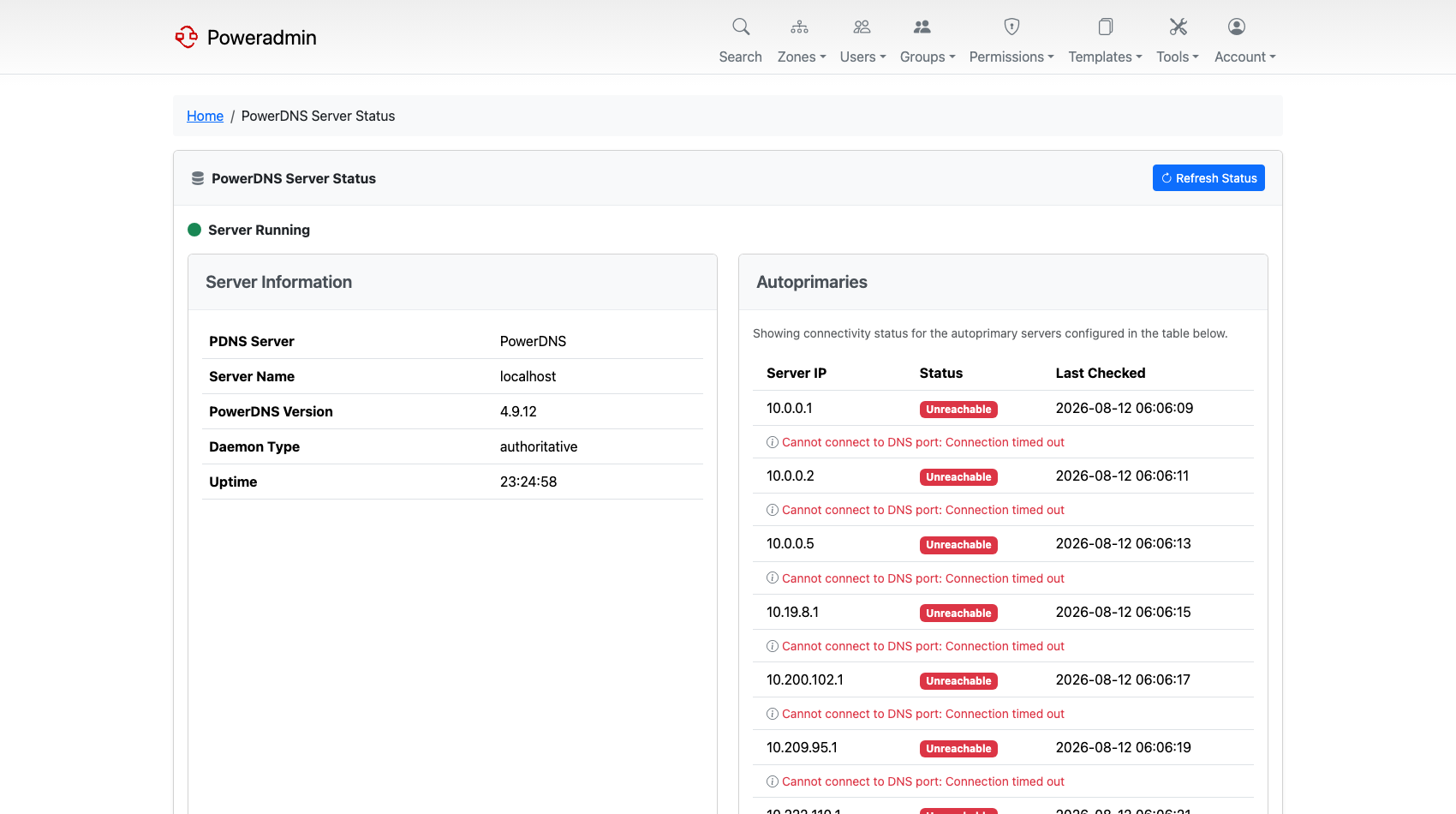
The PowerDNS Server Status page reports whether the server is reachable, its version, daemon type and uptime, and the connectivity of each configured autoprimary.
API Backend Mode (v4.3.0+)
API backend mode eliminates the need for Poweradmin to access the PowerDNS database. All DNS operations go through the PowerDNS REST API.
When to Use API Backend Mode
- PowerDNS database is not accessible from the Poweradmin server
- Running PowerDNS as a managed/cloud service
- Network policies prevent direct database access
- You prefer API-first integration
PowerDNS 4.7 or newer is recommended. API backend mode runs on any supported PowerDNS version, but zone listings are faster from 4.7 onward, where a single RRset can be fetched instead of a whole zone. See Requirements.
Configuration
Set dns.backend to api in your config/settings.php:
return [
    'dns' => [
        'backend' => 'api',
        'hostmaster' => 'hostmaster.example.com',
        'ns1' => 'ns1.example.com',
        'ns2' => 'ns2.example.com',
    ],

    'pdns_api' => [
        'url' => 'http://powerdns-server:8081',
        'key' => 'YOUR_API_KEY',
        'server_name' => 'localhost',
    ],

    // Poweradmin's own database (still required)
    'db_host' => 'localhost',
    'db_port' => 3306,
    'db_user' => 'poweradmin',
    'db_pass' => 'password',
    'db_name' => 'poweradmin',
    'db_type' => 'mysql',

    // PowerDNS database settings are NOT needed in API mode
];
Required: when dns.backend is api, both pdns_api.url and pdns_api.key must be set. Otherwise Poweradmin fails on the first DNS operation with:
dns.backend is set to "api" but pdns_api.url and/or pdns_api.key are not configured.
Set both values or change dns.backend to "sql".
There is no SQL fallback, so writes can't bypass the API path by accident.
New Installation with API Backend
The installer (Step 4) offers a choice between "Database" and "API" backend. Selecting API will:
- Prompt for the PowerDNS API URL and key
- Skip PowerDNS database configuration
- Set
dns.backendtoapiin the generated configuration
Installing Poweradmin on top of an existing PowerDNS
If PowerDNS already has zones (e.g., you imported them via mysqldump or directly into the domains table), those zones will not appear in Poweradmin immediately after installation.
This is expected behavior. The installer creates Poweradmin's schema and initial configuration - it does not import or reconcile existing PowerDNS zones. Poweradmin stores ownership and metadata in its own zones table, one row per PowerDNS domain, and those rows are added by the zone sync service at runtime.
To populate existing zones after a fresh install:
- Log in as an administrator.
- Navigate to Forward Zones (not the dashboard). Sync runs on that page load.
- All zones from PowerDNS will appear with no owner assigned.
- Assign owners (or zone-group access) as needed.
The dashboard may report "0 zones" until the sync has run at least once in API mode. Visiting Forward Zones triggers the sync.
Migrating from SQL to API Backend
- Ensure the PowerDNS API is enabled and accessible
- Run the v4.3.0 database migration (adds required columns to
zonestable) - Add
pdns_api.urlandpdns_api.keytoconfig/settings.phpand verify the API is reachable (see Testing Connection above) - Change
dns.backendfromsqltoapi - Load any page - the zone sync service automatically populates cached zone metadata
All existing zone ownership, group assignments, and permissions are preserved. The migration is reversible by changing dns.backend back to sql.
What changes at runtime:
- All zone and record writes go through the PowerDNS API, so cache flush and DNSSEC rectify/signing are triggered automatically. In SQL mode these required manual
pdns_control cache-flushcalls. - NOTIFY is not sent as a side effect of an API write. PowerDNS only sends one from the explicit
PUT /zones/{id}/notifyendpoint, which Poweradmin does not call, or from the primary's periodic serial-check loop - which needsprimary=yes(formerlymaster=yes) inpdns.confand behaves the same way in SQL mode. - The Poweradmin app no longer needs credentials for the PowerDNS database. You can remove
pdns_db_*settings and revoke the corresponding database grants.
Zone Sync Service
In API backend mode, a sync service keeps the local zones table in sync with PowerDNS:
- Automatic: Runs on zone list page loads, throttled to once per 5 minutes per session
- Adds zones created directly in PowerDNS (assigned no owner - admin must assign access)
- Removes local entries for zones deleted from PowerDNS
- Updates cached zone type and master when changed
Manual Sync (v4.4.0+)
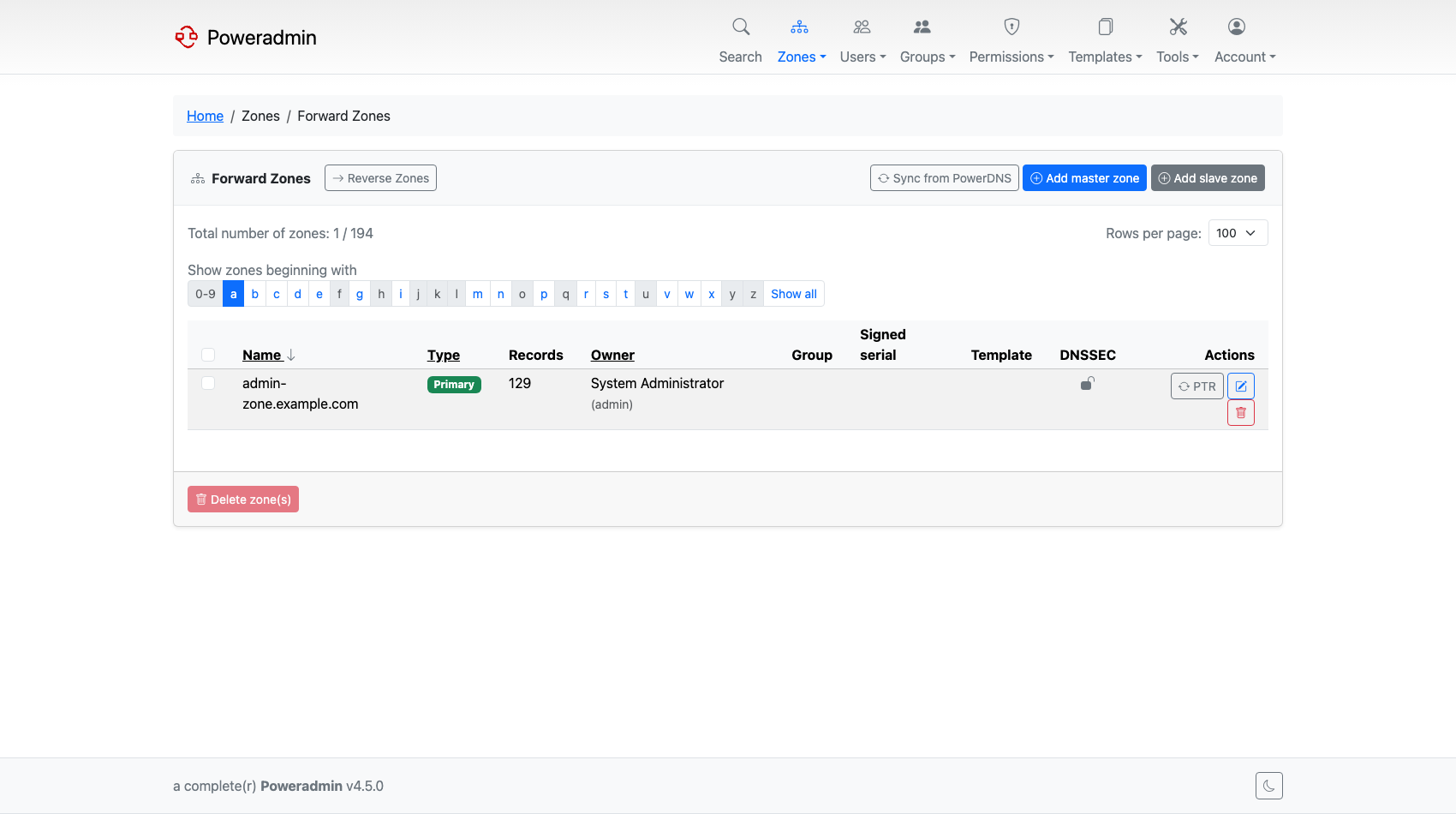
If you've just created zones in PowerDNS through pdnsutil or another tool and don't want to wait for the next scheduled sync, the Forward Zones page now has a Sync from PowerDNS button. Clicking it triggers an immediate sync against the PowerDNS API.
The button is only shown to ueberusers, and the server re-checks that permission when the CSRF-protected POST arrives. Unlike the automatic sync, the manual press is not throttled: it always runs a full reconciliation.
What Happens When the API is Down
If PowerDNS becomes unreachable, sync stops but the dashboard does not throw a stack trace at users. Instead:
- The cached zone count from the last successful sync is kept on display, so you don't see "0 zones" during a transient outage.
- Admin pages show an API-error banner with the HTTP status and a short hint at what to check next (network, credentials, capabilities endpoint).
- Sync retries are not throttled during outages - once the API comes back, the next page load reconciles normally.
Docker
For Docker deployments, set the backend via environment variable:
environment:
  PA_DNS_BACKEND: api
  PA_PDNS_API_URL: http://powerdns:8081
  PA_PDNS_API_KEY: your-api-key
Security Considerations
- Always use HTTPS for production environments
- Restrict API access to trusted IP addresses
- Use a strong API key and rotate it regularly
- Consider using a reverse proxy for additional security
- Keep PowerDNS and Poweradmin updated to the latest versions
- In API backend mode, the API key grants full control over PowerDNS - protect it accordingly