Zone Management
Zones are the core objects in Poweradmin. Each zone corresponds to a DNS domain (or reverse network) managed by PowerDNS. This guide covers creating, editing, and managing zones.
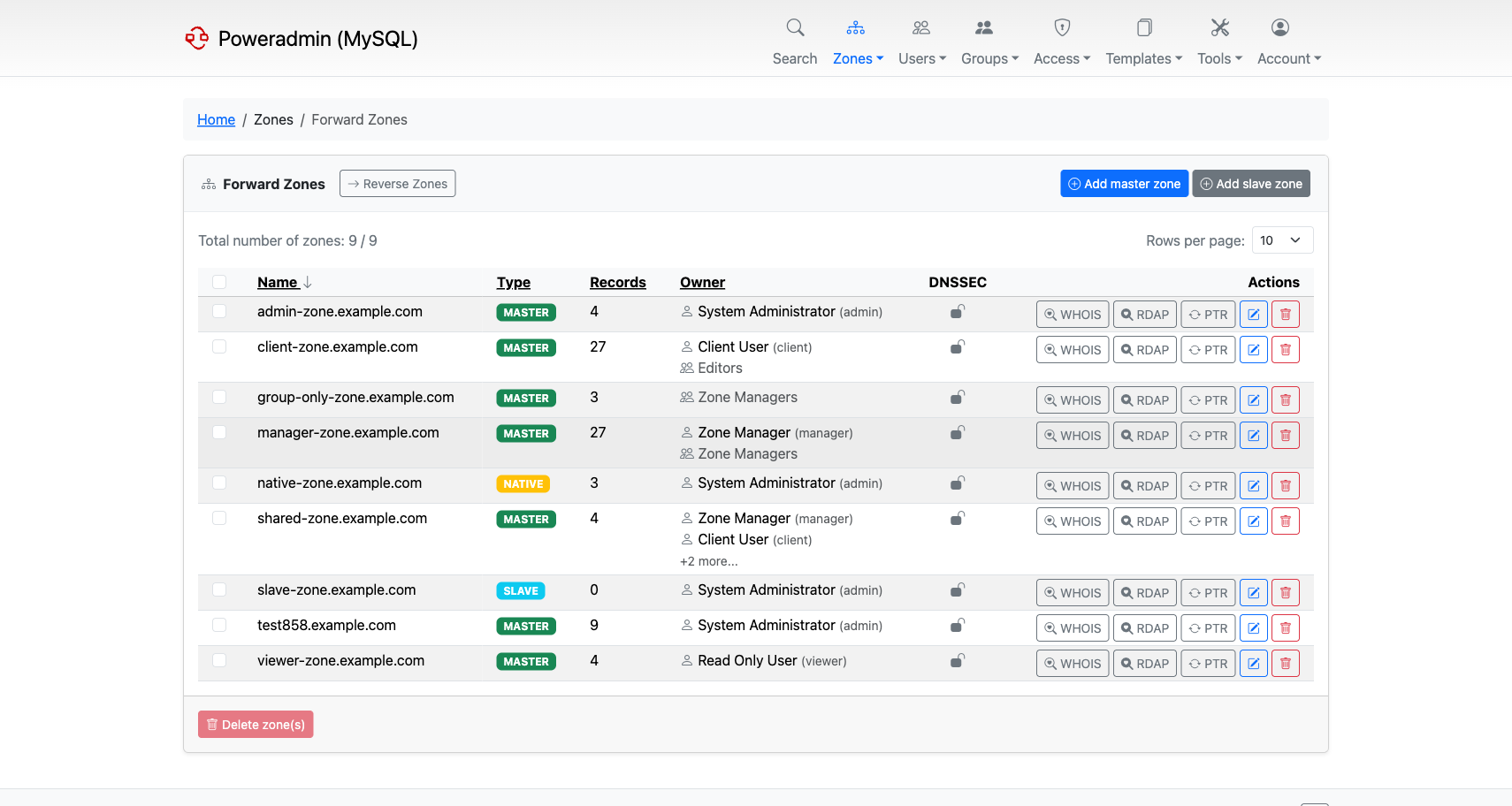
Zone Types
PowerDNS supports three zone types. Choose the type based on your DNS architecture:
- Master - the authoritative source for the zone. Changes are made here and replicated to slave servers. Use this when Poweradmin is your primary DNS management interface.
- Slave - a read-only copy that receives updates from a master server. Use this when another DNS server holds the primary data and you want PowerDNS to serve as a secondary.
- Native - zones that rely on native database replication instead of DNS-based zone transfers (AXFR/IXFR). Use this when all your PowerDNS servers share the same database backend.
Tip: If you are running a single PowerDNS server, Native is the simplest option since no zone transfers are needed.
Creating Zones
Adding a Master Zone
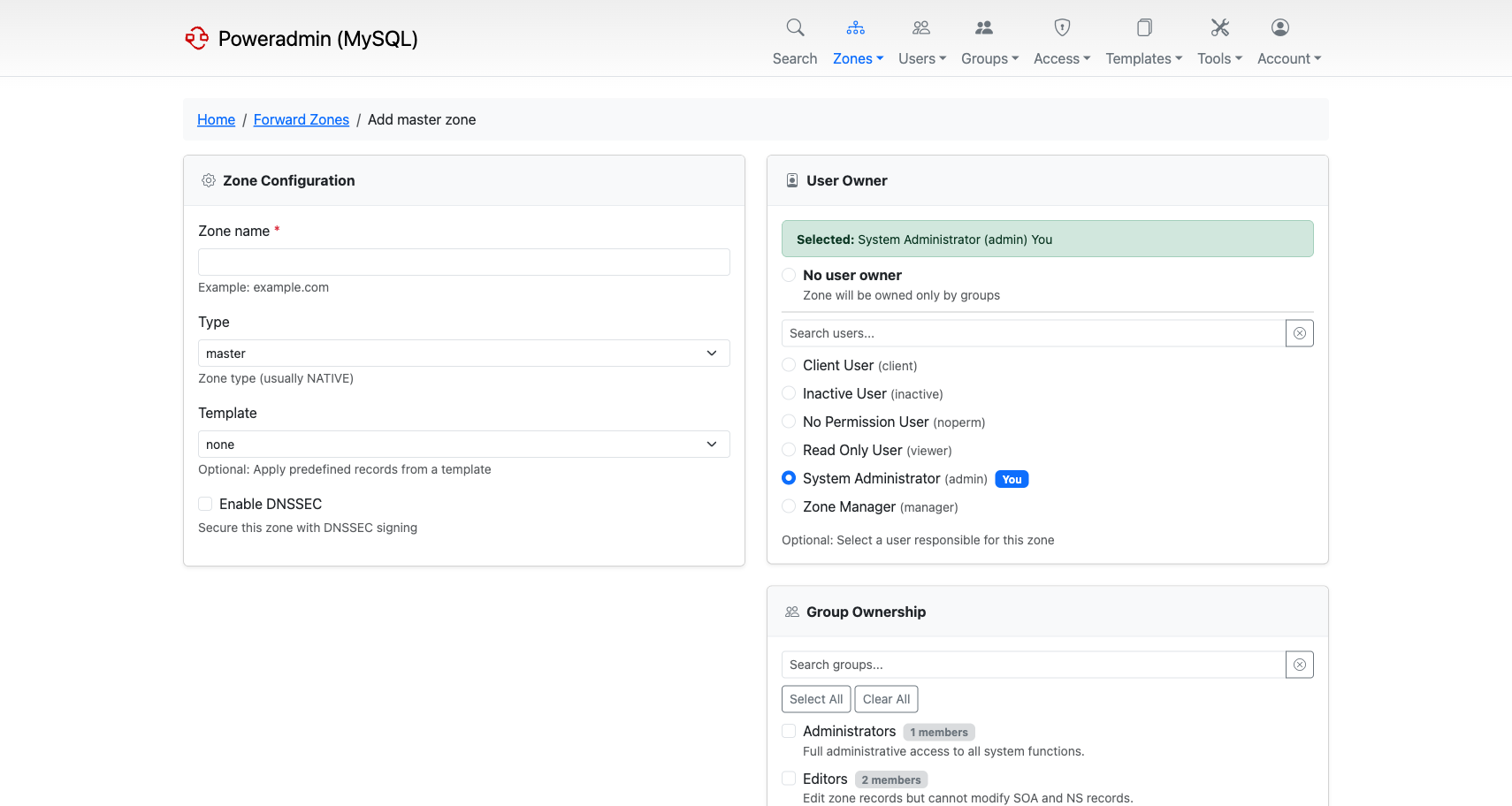
- Navigate to Zones and click Add master zone
- Enter the Zone name (e.g.,
example.com) - Select an Owner - the user who will manage this zone
- Optionally select a Zone template to pre-populate records (SOA, NS, etc.)
- Enable DNSSEC if you want the zone signed by PowerDNS
- Click Add zone
The zone is created with the records defined in the selected template. If no template is chosen, only a SOA record is created.
Adding a Slave Zone
- Navigate to Zones and click Add slave zone
- Enter the Zone name
- Enter the Master server IP address that this slave will pull data from
- Select an Owner
- Click Add zone
Slave zones are populated automatically by PowerDNS through zone transfers from the configured master server.
Zone Templates
Zone templates let you define a standard set of records that are added when creating a new zone. This is useful for ensuring every zone starts with consistent SOA values, nameserver records, and common entries like MX or SPF records. See DNS Templates for details on creating and managing templates.
Zone Editor
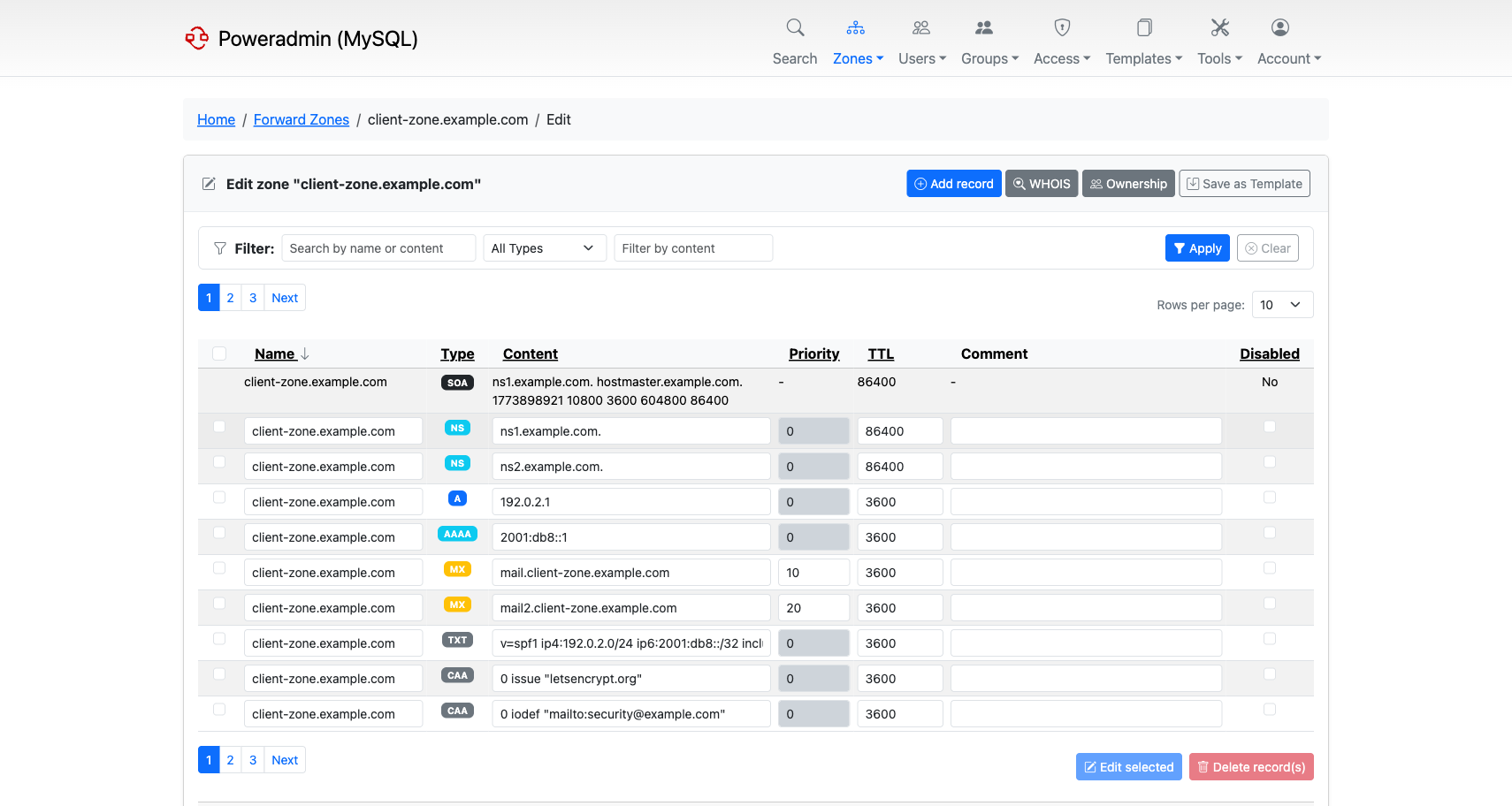
The zone editor is where you view and modify a zone's DNS records. It shows all records in a table with columns for name, type, content, TTL, and priority.
Editing Records
- Click the edit icon next to a record to modify it inline
- Change the name, type, content, TTL, or priority fields directly in the table
- Click Save to apply changes or Cancel to discard
Adding Records
Use the input row at the top of the record table to add new records:
- Enter the record Name (just the hostname part, e.g.,
www) - Select the record Type (A, AAAA, CNAME, MX, TXT, etc.)
- Enter the Content (e.g., an IP address for A records)
- Set the TTL and Priority if applicable
- Click Add Record
Configurable Columns
Starting in v4.1.0, the zone editor supports configurable columns. You can show or hide columns such as Priority, TTL, or DNSSEC-related fields to reduce clutter depending on your workflow.
Sorting
Starting in v4.1.0, you can sort records by clicking column headers. This helps when working with large zones to quickly find specific records.
Bulk Operations
Starting in v4.0.0, you can add multiple records to a zone at once:
- Open a zone in the zone editor
- Click Add multiple records
- Fill in several record rows in the bulk form
- Click Add Records to create them all at once
This is particularly useful when setting up a new zone or adding a batch of similar records.
CSV Export
Starting in v4.0.0, you can export a zone's records as a CSV file:
- Open the zone in the zone editor
- Click the CSV export button
- The browser downloads a CSV file containing all records in the zone
This is useful for documentation, auditing, or migrating zone data to another system.
Zone Ownership
Every zone has at least one owner. Ownership determines who can edit and manage the zone.
- User ownership - assign individual users as zone owners when creating or editing a zone
- Group ownership - assign zones to Groups so all group members get access based on the group's access template
A zone can have both individual user owners and group owners simultaneously. Permissions from all sources are combined - if any ownership path grants a user access, they have it.
Note: When creating a zone, you must select at least one owner. Administrators can reassign ownership later.
Disabled Records
Starting in v4.1.0, you can disable individual records without deleting them:
- In the zone editor, toggle the disabled checkbox on a record
- Disabled records remain in the database but are not served by PowerDNS
- Re-enable a record at any time by toggling it back on
This is useful for temporarily taking a record out of service during maintenance or troubleshooting, without losing the record configuration.
Zone Deletion
To delete a zone, click the delete icon next to the zone in the zone list, or use the delete option from the zone editor.
Starting in v4.1.0, zone deletion uses two separate permissions:
zone_delete_own- allows deleting zones you ownzone_delete_others- allows deleting any zone, regardless of ownership
Warning: Deleting a zone removes all its records permanently. This action cannot be undone. Make sure you have a backup or CSV export if you might need the data later.
See Permissions for a full list of available permissions and how to assign them through access templates.